Data types are used to represent type of the variable & expressions. Representing how much memory is allocated for variable. Specifies range value of the variable.
There are 8 primitive data types in java
Data Type
size(in bytes)
Range
default values
byte
1
-128 to 127
0
short
2
-32768
0
int
4
-2147483648 to 2147483647
0
long
8
9,223,372,036,854,775,808 to 9 ,223,372,036,854,775,807
An identifier contains group of Uppercase & lower case characters, numbers ,underscore & dollar sign characters but not start with number.
int abc=10; —> valid int _abc=30; —> valid int $abc=40; —>valid
int a-bc=50; —>not valid int 2abc=20; —> Invalid int not/ok=100 -invalid
2.Java identifiers are case sensitive of course java is case sensitive programming language. The below three declarations are different & valid.
class Test
{
int NUMBER=10;
int number=10;
int Number=10;
}
3.The identifier should not duplicated & below example is invalid because it contains duplicate variable name.
class Test{
int a=4;
int a=5;
}
4.In the java applications it is possible to declare all the predefined class names & interfaces names as a identifier but it is not recommended to use. class Test { public static void main(String[] args) { int String=10;
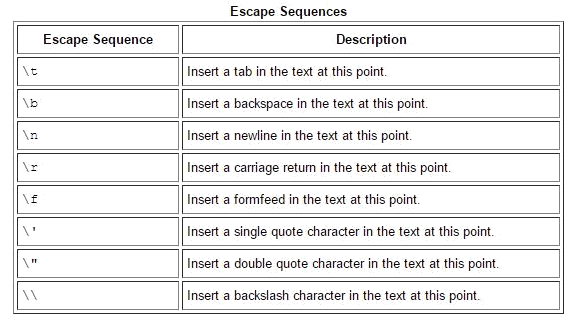
A character preceded by a backslash (\) is an escape sequence and has special meaning to the compiler. The following table shows the Java escape sequences
Comments are used to write the detailed description about application logics to understand the logics easily.
Comments are very important in real time because today we are developing the application but that application maintained by some other person so to understand the logics by everyone writes the comments.
Comments are non-executable code these are ignored at compile time.
There are 3 types of comments.
Single line Comments:-
By using single line comments it is possible to write the description about our programming logics within a single line & these comments are Starts with // (double slash) symbol.
Syntax:-//description
Multi line Comments:-
This comment is used to provide description about our program in more than one line & these commands are start with /* & ends with */
Syntax: –/*—-satement-1
—-statement-2
*/
Documentation Comments:-
By using documentation comments it possible to prepare API(Application programming interface) documents.(e will discuss later chapte)
Editor is a tool or software it will provide very good environment to develop java application. Ex :- Notepad, Notepad++,edit Plus…..etc
IDE:- ( Integrated development Environment )
IDE is providing very good environment to develop the application.
Ex:- Eclipse,MyEclipse,Netbeans,JDeveloper….etc
IDE is a real-time standard but don’t use IDE to develop core java applications because 75% work is done by IDE & remaining 25 % work is down by developer.
75% work of IDE is:-
Automatic compilation.
Automatic package import.
It shows all the predefined methods of classes.
Automatically generate try catch blocks and throws (Exception handling)
It is showing the information about how to fix the bug………………………etc
Note :- Do the practical’s of core java only by using Edit Plus software.
Step 2:- Write a program.
Example application:-
import java.lang.System;
import java.lang.String;
class Test//class declaration
{//class starts
public static void main(String[] args)//program execution starting point
In above example String & System classes are present predefined java.lang package hence must import that package by using import statement.
There are two approaches to import the classes in java, 1) Import all class of particular package.
a. Import java.lang.*;//it is importing all classes of java.lang package.
Import required classes
Import java.lang.System;
Import java.lang.String;
In above two approaches second approach is best approach because we are importing application required classes.
Note: The source file is allows declaring multiple java classes.
Step3:- save the application.
After writing the application must save the application by using (.java) extension.
While saving the application must fallow two rules:
If the source file contains public class then public class name & Source filename must be same (publicClassName.java). Otherwise compiler generate error message.
if the source file does not contain public class then save the source file with any name (anyName.java) like A.java , Ratan.java, Anu.java …….etc .
Note: – The source file allowed only one public class, if we are trying to declare multiple public classes then compiler generate error message.
Step-4:- Compilation process.
Compile the java application by using javac command.
Syntax:-Javac filename
Javac Test.java
Process of moving application saving location:-
C:\Users\hp>initial cursor location
C:\Users\hp>d:move to local disk D
D:\>cd atulchanging directory to ratan
D:\atul>javac Sravya.java compilation process
Whenever we are performing compilation the compiler will check the syntax errors.
If the application contains syntax errors then compiler will generate error message in the form of compilation error.
If the application does not contains syntax errors then compiler will generate .class files.(conversion of .java to .class)
Note: – in java .class files generated by compiler at compilation time and .class file generation based on number of classes present in source file.
If the source file contains 100 classes after compilation compiler generates 100 .class files
The compiler generate .class file and .class file contains byte code instructions it is intermediate code.
Process of compiling multiple files:-
D:
|–>atul
|–>Sravya.java
|–>A.java
|–>B.java
|–>C.java
javac
A.java
one file is compiled(A.java)
javac
B.java C.java
two files are compiled
javac *.java
all files are compiled
Step-5:- Execution process.
Run /execute the java application by using java command.
Syntax:-Java class-name
Java Test
Whenever you are executing particular class file then JVM perform fallowing actions.
JVM wills loads corresponding .class file byte code into memory.
After loading .class file JVM calls main method to start the execution process.
In above two cases if the class file or main method is not available then at runtime JVM will generate error message.
If the main method is not available: “Main method not found in class A, please define the main method”.If the .class is not available : “Could not find main class”.
Executing all generated .class files based on example given in second step:-
Test class
—>
class is loaded & main is present
A class
—>
class is loaded but main is not present
B class
—>
class is loaded but main is not present
XXX class
—>
XXX class is not present
D:\atul>java Test
Hi Atul
D:\atul>java A
Error: Main method not found in class A, please define the main method as:
D:\atul>java B
Error: Main method not found in class B, please define the main method as:
D:\atul>java XXXError: Could not find or load main class XXX
1.compiler is translator it is translating .java it is translating .class file to machine code.file to .class where as JVM is also a translator
2.Compiler understandable file format is .java file but JVM understandable file format is .class file.
3.It is possible to compile multiple files at a time but it is possible to execute only one .class file at a time.
4.The .java file contains high level language (English) but .class file contains byte code instructions.
5.java is a platform independent language but JVM is platform dependent.
Conclusion 1:- Java contains 14 predefined packages but the default package in java is java.lang
class Test
{
public static void main(String[] args)
{
System.out.println(“hi ratan”);
}
}
Conclusion -2:-
The class contains main method is called Main class and java allows to declare multiple main
class in a single source file.
Conclusion -3:– The source file is allows to declare only one public class, if you are declaring morethan
one public class compiler generate error message.
conclusion-4The below example compiled & executed but it is not recammanded because the class
Variable name starts with lower case letter and every inner word starts with upper case letter.
This convention is also known as mixed case convention.
Ex :- out in pageContext
Package :-Package name is always must written in lower case letters. Ex :-java.lang java.util java.io …etc
Constants:-
While declaring constants all the words are uppercase letters .
Ex: MAX_PRIORITYMIN_PRIORITYNORM_PRIORITY
NOTE:- The coding standards are mandatory for predefined library & optional for user defined library but as a java developer it is recommended to fallow the coding standards for user defined library also.
ü Download the software from internet based on your operating system & processor
because the software is different from operating system to operating system & processor to processor.
Install the java software in your machine:-
Local Disk c: —>program Files—>java —>jdk(java development kit),jre(java runtime nvironment)
After installing To check whether the java is installed in your system or not open the command prompt type javac command.
Process to open command prompt: Start —>run—->open:cmd—->ok
C:\Users\ATUL>javac
“ ‘javac‘ is not recognized as an internal or external command,operable program or batch file.”
Whenever we are getting above information then decide in our system java is installed but the java is not working.
Why java is not working Reason:-
C:\Users\ATUL>javac
Whenever we are typing javac command on the command prompt operating system will pickup javac command search for that command,
in the internal operating system calls but javac is not available in the internal system calls list.
If it not available in internal system calls list then immediately it won’t raise any error, it will search in environmental variables
In above two cases if the javac command is not available then operating system will raise error message “javac is not recognized as an internal or external command”To overcome above problem to make eligible javac command operating system set environmental variables.
The location of javac command is : C:\Program Files\Java\jdk1.7.0\bin
Right click on mycomputer
—>properties—–
>Advanced system setting—>Environment Variables —
User variables >new >——-
variable name : path
Variable value : C:\programfiles\java\jdk1.6.0_11\bin;
—–>ok—-
>ok
Now the java is working in your system to check open the new command prompt & type javac command then we will get list of commands then decide in your system java is working.
In your system or your friend system to check java is installed or not open the command prompt
type javac command
If error message displayed java is not working.(‘javac’ is not recognized as an internal or external command)
If list of commands are displayed then decide java is working properly.
Now the java is working in your system to check open the new command prompt & type javac command then we will get list of commands then decide in your system java is working.
In your system or your friend system to check java is installed or not open the command prompt
type javac command
If error message displayed java is not working.(‘javac’ is not recognized as an internal or external command)
If list of commands are displayed then decide java is working properly.
 Java in easy way